

How to Automate Gmail to Slack Notifications
The goal
Get an instant Slack message whenever an important email lands in Gmail.
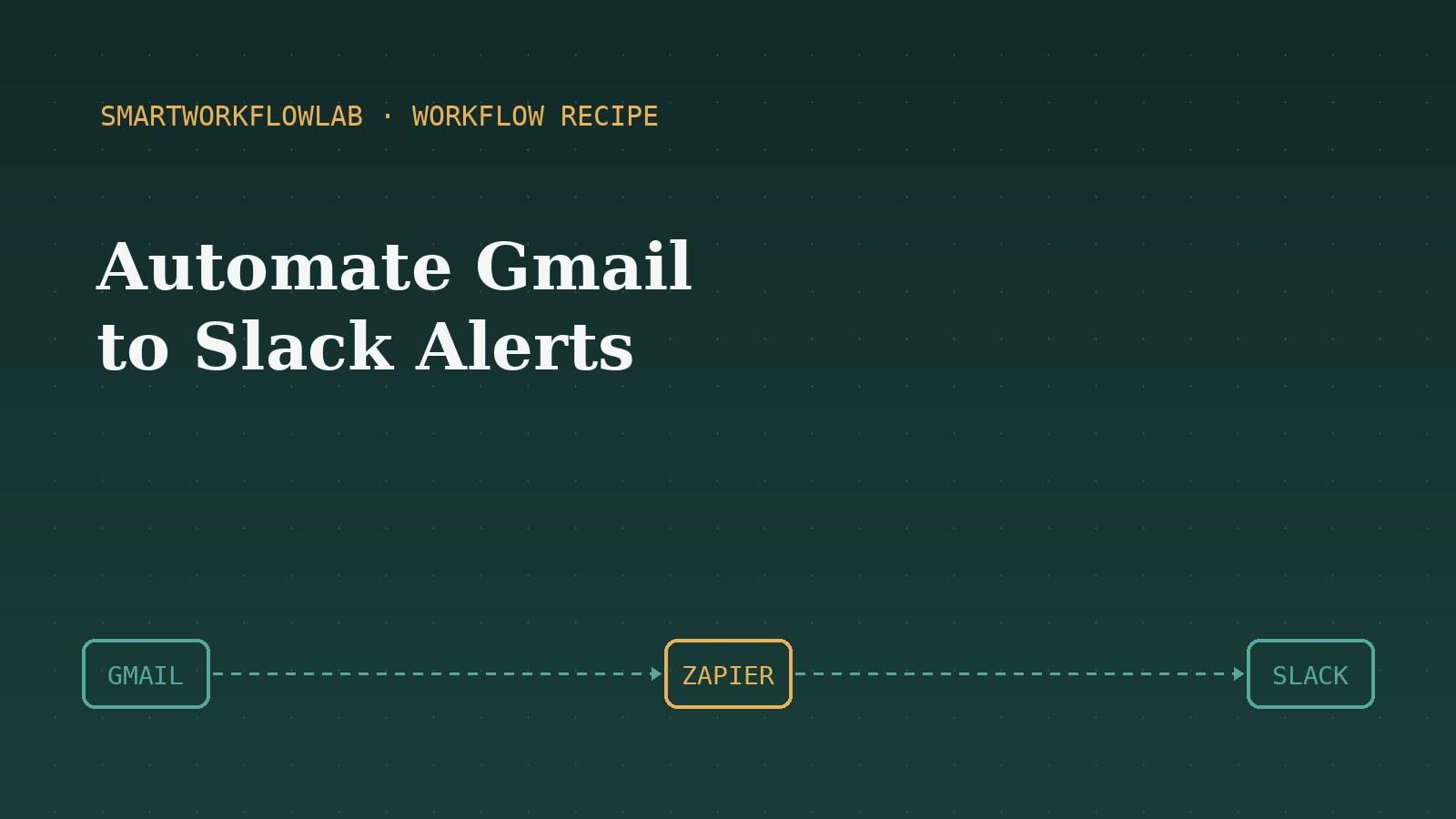
Missing an important email because it got buried in a busy inbox is a common, avoidable problem. If your team lives in Slack, routing the emails that matter straight into a Slack channel means you see them immediately — without constantly checking Gmail.
This recipe connects Gmail to Slack using a no-code automation tool. The whole thing takes about fifteen minutes to set up and then runs quietly in the background forever. The single most important part is the filter: get that right, and you’ll be alerted only for the messages you actually care about.
What you’ll need
You’ll need a Gmail account, a Slack workspace where you can post messages, and a free account with an automation tool like Zapier or Make. That’s it — no code, no technical setup beyond connecting your accounts.
Follow the steps below and you’ll have working email-to-Slack alerts in a few minutes. If you’re new to automation tools, our workflow automation guide explains the basics, and you can compare the two most popular tools in Zapier vs Make.
Step-by-step guide
Connect Gmail and Slack to your automation tool
Sign in to Zapier (or Make) and connect both your Gmail and Slack accounts. You'll authorise each app once so the automation can read new emails and post messages on your behalf.
Set Gmail as the trigger
Create a new automation ("Zap") and choose Gmail as the trigger app. Pick a trigger like "New Email Matching Search" so you only get alerted for the emails that matter, not every message.
Define which emails matter
Use a Gmail search string to filter — for example "from:boss@company.com" or "subject:urgent" or "label:clients". This is the key step; a good filter means you're only alerted for genuinely important messages.
Set Slack as the action
Choose Slack as the action app and select "Send Channel Message" or "Send Direct Message". Pick the channel or person who should receive the alert.
Build the alert message
Map the email's fields into your Slack message — sender, subject, and a snippet of the body. A useful format is "New email from {{sender}} - {{subject}}" so you can triage at a glance.
Test and turn it on
Send yourself a test email that matches your filter and confirm the Slack alert appears. Once it works, switch the automation on. It will now run automatically in the background.
Frequently asked questions
Do I need to know how to code to automate Gmail to Slack?
No. Using a no-code tool like Zapier or Make, you can build this automation entirely through a visual interface by connecting your accounts and choosing triggers and actions. No coding is required.
Will I get spammed with Slack alerts for every email?
Only if you set it up that way. The key is the Gmail search filter — by specifying a sender, subject keyword, or label, you ensure only genuinely important emails trigger a Slack alert, not your entire inbox.
Is this free to set up?
It can be. Both Zapier and Make have free tiers that cover low-volume automations like this. If you're only alerting on a handful of important emails a day, the free plan is usually enough.
More workflow recipes
Last updated July 12, 2026