

How to Automate Invoice Data Entry with AI
The goal
Turn incoming invoice emails into structured spreadsheet rows automatically.
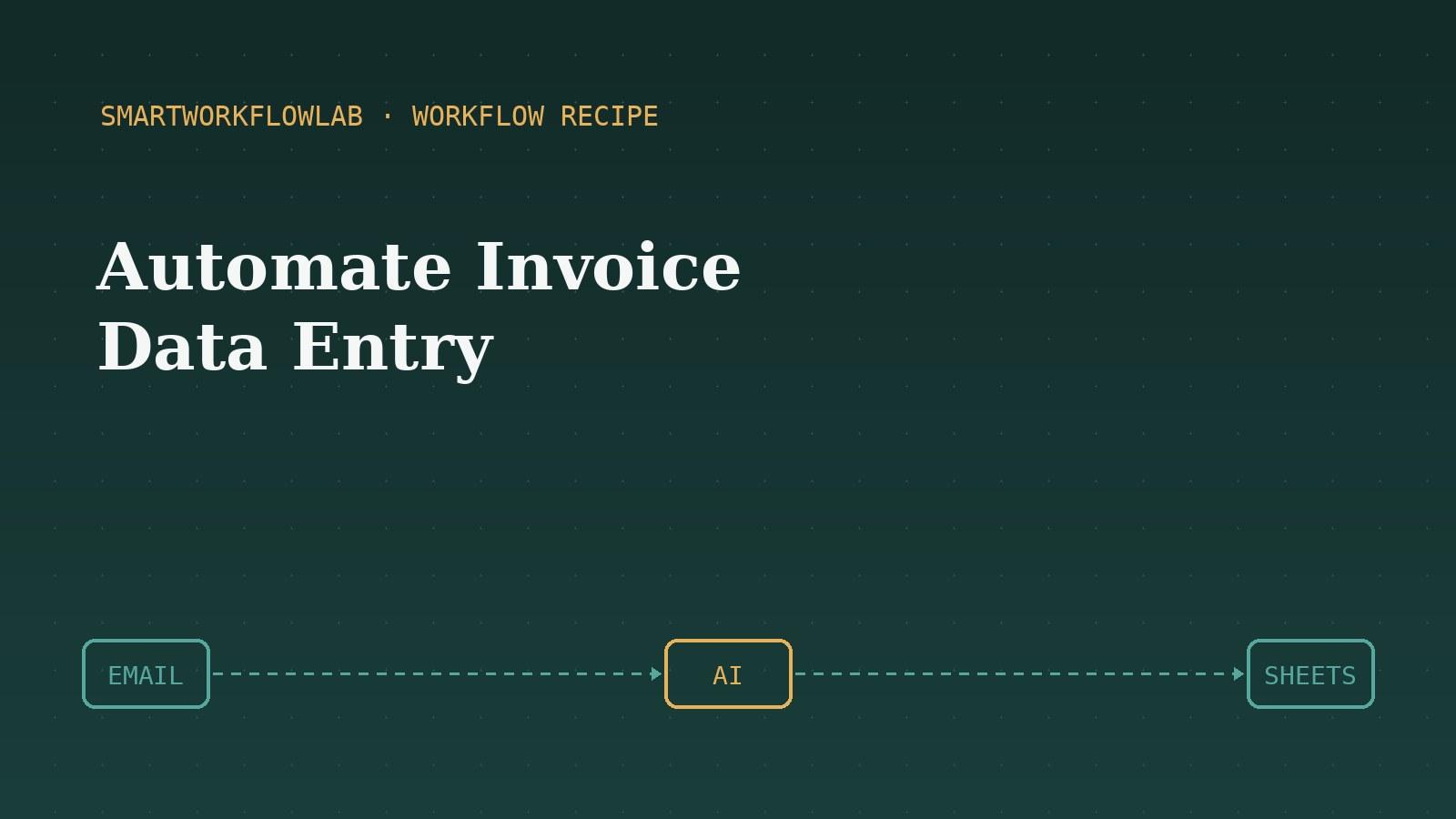
Manually typing invoice details into a spreadsheet is exactly the kind of repetitive, error-prone task automation was made for. A single invoice takes a few minutes; across a month of them, it adds up to hours of work that a machine can do faster and more consistently.
This recipe uses AI document processing to read incoming invoices and turn them into structured spreadsheet rows automatically. Unlike older tools that needed every invoice in the same format, modern AI understands the meaning of fields, so it copes with the reality that every vendor’s invoice looks different.
What you’ll need
You’ll need a place where invoices arrive (usually an email inbox), an automation tool with AI document-processing capability, and a destination like Google Sheets or your accounting software. The setup is a little more involved than a simple alert, but the time it saves makes it well worth the half hour.
To go deeper on the technology behind this, see our guide on intelligent document processing, and use our automation ROI calculator to estimate exactly how much time this could save you.
Step-by-step guide
Decide where invoices arrive
Most invoices come in by email as PDF attachments. Pick the inbox or folder they land in, and if possible set up a dedicated label or address (like invoices@yourcompany.com) so the automation has one clear source to watch.
Choose an AI document-processing tool
Select a tool that can read PDFs and extract fields — many automation platforms now include AI document processing, or you can use a dedicated intelligent document processing service. This is what turns an unstructured invoice into structured data.
Set the email as the trigger
In your automation tool, create a workflow triggered by "New Attachment" or "New Email with Attachment" in your invoice inbox. This fires every time a new invoice arrives.
Extract the invoice fields with AI
Add an AI extraction step that pulls the key fields — vendor name, invoice number, date, line items, and total amount. Modern AI can read these reliably even when every invoice has a different layout.
Send the data to your spreadsheet
Add a "Create Row" action for Google Sheets (or your accounting tool) and map each extracted field to a column. Each new invoice now becomes a new, structured row automatically.
Add a review step for exceptions
No extraction is perfect. Add a check — for example, flag any invoice where the total couldn't be read, or route unusual ones to a person for review. This keeps accuracy high without you checking every single one.
Test with real invoices and switch on
Run several real invoices through the workflow and confirm the spreadsheet rows are correct. Once you're confident, turn it on and let it handle the routine cases automatically.
Frequently asked questions
Can AI really read invoices accurately?
Modern AI document processing is very good at reading invoices, even when each vendor uses a different layout, because it understands the meaning of fields rather than relying on fixed positions. It's not perfect, so a review step for exceptions is recommended, but it handles the bulk of routine invoices reliably.
What is intelligent document processing?
Intelligent document processing (IDP) is the use of AI to read documents like invoices, contracts, and forms and extract structured data from them without manual typing. It's the technology that makes invoice automation possible across many different document layouts.
Do I need accounting software for this?
Not necessarily. You can send extracted invoice data to a simple Google Sheet, or directly into accounting software like QuickBooks or Xero if your automation tool supports it. Starting with a spreadsheet is the easiest way to prove the workflow before connecting it to your accounting system.
More workflow recipes
Last updated July 12, 2026