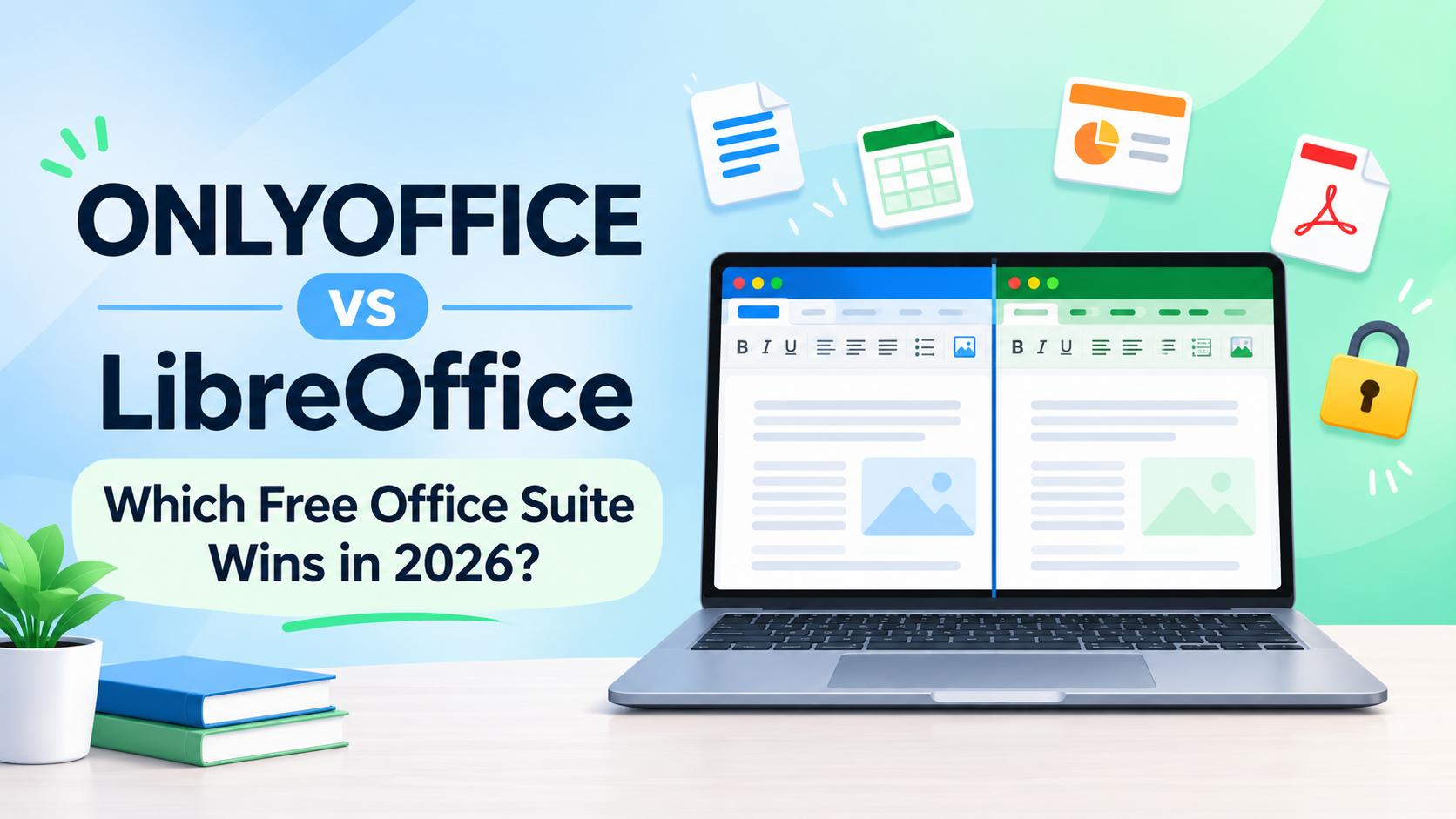
ONLYOFFICE is the better choice if you work with Word, Excel and PowerPoint files every day or need to edit documents with your team in real time. LibreOffice is the better choice if you want a completely free, offline office suite with more apps and no AI or cloud features. Both are free on Windows, Mac and Linux, so whether you pick ONLYOFFICE or LibreOffice depends on your files, not your budget.
The gap between them changed in 2026. ONLYOFFICE 10.0, released in October, put AI tools in every editor. LibreOffice 26.8, released in August, went the other way and deliberately ships with no generative AI at all. If you care about privacy or about AI, that difference now matters as much as file compatibility.
This LibreOffice vs ONLYOFFICE guide compares the two on what matters to freelancers and small teams: Microsoft Office compatibility, fonts, features, AI, collaboration, privacy and cost.
How we evaluated
- Versions compared: ONLYOFFICE Docs and Desktop Editors 10.0 (October 2026) and LibreOffice 26.8 (August 2026), the latest major releases when this was written.
- Prices and plans were checked on November 2, 2026, on ONLYOFFICE’s own pricing and edition pages. LibreOffice is free.
- We compared five things: Microsoft Office compatibility, apps and features, AI, collaboration, and total cost for a small team.
- This is a research-based comparison based on release notes, official documentation and pricing pages, not a lab benchmark. Neither project sponsored this article, and there are no affiliate links.
ONLYOFFICE vs LibreOffice at a Glance
| Feature | ONLYOFFICE | LibreOffice |
|---|---|---|
| Price for one person | Free (Desktop Editors and mobile apps) | Free |
| Built around | Microsoft formats (DOCX, XLSX, PPTX) | OpenDocument formats (ODT, ODS, ODP) |
| Word/Excel compatibility | Very strong | Good, but complex layouts can shift |
| Interface | Microsoft-style ribbon with tabs | Classic menus and toolbars; optional tabbed view |
| Apps included | Documents, spreadsheets, slides, PDF editor, forms | Writer, Calc, Impress, Draw, Base (database), Math |
| AI | Built in (every editor; optional, beta on desktop) | None, by design |
| Real-time co-editing | Yes, via DocSpace cloud or own server | No (Collabora Online adds it in the browser) |
| Mobile apps | Free iPhone and Android apps | No official editor (Collabora Office is closest) |
| Macros | JavaScript | LibreOffice Basic, Python, partial VBA support |
| License | AGPL v3 (open source) | MPL 2.0 (open source) |
| Latest version | 10.0 (October 2026) | 26.8 (August 2026) |
| Made by | Ascensio System SIA (Riga, Latvia) | The Document Foundation (non-profit, Germany) |
The Real Difference: Which File Format Each One Is Built On
Most comparisons say “ONLYOFFICE is more compatible with Microsoft Office” without explaining why. The reason is simple, and it helps you predict which one will work for you.
ONLYOFFICE uses Microsoft’s formats as its own. DOCX, XLSX and PPTX are its native formats, so when you open a Word file, nothing has to be translated. Layouts, tables, headers, comments and tracked changes usually look the way they did in Word.
LibreOffice uses the OpenDocument Format (ODF) as its own. ODT, ODS and ODP are its native formats. When you open a Word file, LibreOffice converts it to its internal model and converts it back when you save. Simple documents survive this perfectly. Complex ones, such as heavily formatted reports, nested tables, SmartArt or advanced Excel charts, can shift slightly.
LibreOffice keeps closing the gap. Version 26.2 made the modern Excel 2010-365 format the default when saving XLSX files, and version 26.8 can keep newer Excel chart types such as waterfall and treemap when you save, although it can’t yet display or edit them.
What this means for you:
- If clients, employers or schools send you Microsoft files and expect them back in the same format, ONLYOFFICE is the safer pick.
- If you create most of your own documents and mostly send PDFs, LibreOffice works just as well.
- If you work with governments or organizations that require open formats, LibreOffice’s ODF support is the stronger fit, though ONLYOFFICE can open and save ODF files too.
Fonts: The Hidden Cause of “Broken” Word Files
Many layout problems blamed on the office suite are really missing fonts. Word documents usually use Calibri, Cambria or Aptos, which come with Microsoft Office and Windows but not with Linux or a fresh Mac. When a font is missing, the app swaps in another one with different letter widths, and lines, page breaks and tables move.
- LibreOffice includes Carlito and Caladea, free fonts built to match Calibri and Cambria letter for letter in width, so most documents keep their page layout.
- Both apps show a document correctly only if the right fonts are on your computer. If you share files with Office users on Linux, install the fonts your clients use before blaming either suite.
Features and Apps
What You Get With LibreOffice
LibreOffice is the more complete desktop suite. It includes:
- Writer for documents
- Calc for spreadsheets
- Impress for presentations
- Draw for diagrams, flowcharts and simple PDF edits
- Base for desktop databases, similar to Microsoft Access
- Math for formulas and equations
Recent releases added useful features. LibreOffice 26.2 (February 2026) brought Markdown import and export, faster scrolling in big spreadsheets and faster EPUB export. LibreOffice 26.8 added a Paragraph Composer for better-looking justified text, a Draft View, calculated fields in pivot tables, and support for mixed page sizes in one Impress or Draw file.
LibreOffice also comes preinstalled on many Linux distributions, such as Linux Mint, so Linux users often already have it. If you need Base or a true equation editor, ONLYOFFICE has no direct match.
What You Get With ONLYOFFICE
ONLYOFFICE focuses on the apps most people use every day and makes them look and feel like Microsoft Office:
- Document editor
- Spreadsheet editor
- Presentation editor
- PDF editor, which can edit text, recognize tables, add signatures and remove hidden metadata before you share a file
- Forms, for building fillable forms and collecting responses
Version 10.0 added around 50 new features, including GIF and video export for presentations, faster large spreadsheets, and co-author cursor following in documents. The built-in PDF editor is a real advantage for freelancers who sign contracts or fill in forms, since that would otherwise need a separate PDF tool.
Interface
ONLYOFFICE uses a tabbed ribbon very close to Microsoft Office, plus browser-style tabs for open files. If you or your team are moving from Word and Excel, there’s almost nothing to relearn.
LibreOffice opens with classic menus and toolbars by default. You can switch to a ribbon-style layout under View > User Interface > Tabbed, and in 26.8 each app’s ribbon has its own color so it’s easier to tell them apart. It works well, but it still feels less like Office than ONLYOFFICE does.
AI: The Biggest New Difference in 2026
This is where the two projects now take opposite sides.
ONLYOFFICE has AI built in. Version 10.0 added AI Tools and an AI chat to the document, spreadsheet, presentation and PDF editors. It can draft, summarize, translate and reformat content, with ready-made prompts and custom actions. How you get it depends on where you use ONLYOFFICE:
- Free Desktop Editors: AI is an optional module, still labeled beta, that you install from the start window. You connect it to a provider such as ChatGPT, Claude, Gemini, Mistral or DeepSeek, which you pay separately, or to a free local model through Ollama or LM Studio so text never leaves your computer.
- DocSpace cloud: AI runs through ONLYOFFICE’s pay-as-you-go wallet, starting from $0.04 per million tokens.
- Self-hosted server: you can connect any model, including local ones, so documents stay on your network.
Like any AI assistant, it can make mistakes, so check what it writes before you send it.
LibreOffice has no AI, on purpose. LibreOffice 26.8 ships with no generative AI, and nothing in the suite contacts a remote server. The Document Foundation presents this as a deliberate choice for people and organizations who must keep their work private, not a missing feature.
If you like the LibreOffice approach but want optional AI, Collabora Office, a suite built on LibreOffice, added AI features in 2026 that are switched off by default.
Which is right for you? If you already paste text into ChatGPT to summarize or rewrite it, ONLYOFFICE’s built-in AI saves steps. If you handle client contracts, health records or other sensitive files, LibreOffice’s no-AI design removes one more privacy risk. Our guide on what happens to data you share with AI tools explains why that matters.
Collaboration and Cloud
ONLYOFFICE is built for teams. You can co-edit the same document in real time, see each other’s cursors, leave comments and track changes. There are two ways to get this:
- DocSpace cloud: ONLYOFFICE hosts everything for you, organized into shared “rooms.”
- Self-hosted ONLYOFFICE Docs: you run it on your own server, or connect it to Nextcloud, ownCloud, Seafile or similar platforms.
The free Desktop Editors can also connect to these clouds, so you can work in a desktop app and still co-edit.
LibreOffice is built for one person at a time. The desktop app is excellent for individual work, but it has no real-time co-editing. Small teams usually share files through Google Drive, Dropbox or a network folder and take turns. If you need browser-based co-editing with LibreOffice technology, Collabora Online provides it, usually self-hosted or through a hosting partner.
Privacy and Security
Both are open source, both run fully offline on your computer, and neither needs an account for desktop use.
- LibreOffice is the simpler privacy story: local files, no AI, no cloud and no telemetry needed to work. It’s a strong pick if you handle confidential client documents.
- ONLYOFFICE gives you more choice. The desktop app works offline, and you can self-host the server and connect a local AI model so nothing leaves your network. If you use the DocSpace cloud, your files are stored on ONLYOFFICE’s servers, like with any cloud service. Version 10.0 also fixed 35 security vulnerabilities, so keep it updated.
If you’re unsure what’s safe to put in a cloud tool, our guide on whether it’s safe to upload personal documents to AI chatbots covers the same questions for AI tools.
Pricing: What Each Actually Costs
LibreOffice
Free, for any number of users, for personal and business use. There are no paid tiers. The Document Foundation accepts donations, and companies that want guaranteed support can buy it from LibreOffice partners such as Collabora.
ONLYOFFICE
| Option | Price | What you get |
|---|---|---|
| Desktop Editors and mobile apps | Free | Full editors on Windows, Mac, Linux, iPhone and Android |
| DocSpace Startup (cloud) | Free | Up to 3 admins, unlimited users and guests, 12 rooms, 2 GB storage |
| DocSpace Business (cloud) | $20 per admin per month | Unlimited users and guests, 250 GB per admin, branding, SSO, backups, support |
| Docs Community (self-hosted) | Free | AGPL v3 license, recommended for up to 20 users, community support |
| Docs Enterprise (self-hosted) | Quote, by simultaneous connections | Admin panel, professional support, yearly or lifetime license |
| AI usage (cloud) | From $0.04 per 1M tokens | Pay-as-you-go wallet |
Source: ONLYOFFICE DocSpace pricing and edition comparison, checked November 2026.
The useful detail: DocSpace Business bills only admins, not everyone who uses it. A 5-person team where one person manages the space and four just edit pays $20 a month, not $100.
Cost for a 5-Person Team
| Setup | Monthly cost | Real-time co-editing |
|---|---|---|
| LibreOffice on every computer | $0 | No |
| ONLYOFFICE Desktop Editors on every computer | $0 | No |
| ONLYOFFICE DocSpace Startup | $0 (within 12 rooms, 2 GB) | Yes |
| ONLYOFFICE DocSpace Business, 1 admin | $20 | Yes |
| ONLYOFFICE Docs Community, self-hosted | $0 plus your server cost | Yes |
For comparison, Microsoft 365 Business Standard rose to $14 per user per month on July 1, 2026, so a 5-person team pays about $70 a month. Both suites can replace it for most small-business work.
Who Makes Each One
LibreOffice is developed by The Document Foundation, a non-profit based in Germany, together with volunteers and companies such as Collabora. It started in 2010 as a fork of OpenOffice.org.
ONLYOFFICE is developed by Ascensio System SIA, a company based in Riga, Latvia, which set up a holding company in Singapore in 2023. The project began in 2009 as TeamLab and was renamed ONLYOFFICE in 2014. Its early history includes a former Russian parent company, which some organizations check during security reviews. The ONLYOFFICE Wikipedia page has the background.
Both publish their source code, so anyone can inspect what the software does.
Other Free Options Worth Knowing
If neither suite fits, these are the usual alternatives:
- Google Docs, Sheets and Slides: free in the browser with real-time co-editing, but they need an internet connection for most work and store files in Google Drive.
- Microsoft 365 for the web: free browser versions of Word, Excel and PowerPoint with a Microsoft account, with fewer features than the desktop apps.
- WPS Office: a free, Office-like suite with strong Microsoft compatibility, but it is not open source and the free version shows ads.
- Collabora Online and Collabora Office: LibreOffice technology with browser co-editing and mobile apps, aimed at businesses that self-host.
Which One Should You Choose?
| If you… | Choose |
|---|---|
| Exchange Word, Excel and PowerPoint files with clients | ONLYOFFICE |
| Want a Microsoft-style interface with no learning curve | ONLYOFFICE |
| Need to co-edit documents with your team | ONLYOFFICE |
| Want AI help inside your documents | ONLYOFFICE |
| Sign and edit PDFs often | ONLYOFFICE |
| Want a fully free, offline suite with no AI or cloud | LibreOffice |
| Need a desktop database (Base) or equation editor (Math) | LibreOffice |
| Must use open ODF formats for government or legal work | LibreOffice |
| Rely on old Excel VBA macros | LibreOffice, then test carefully |
Our pick for most freelancers and small teams: ONLYOFFICE, because most client files are still Microsoft formats and the free plan already includes co-editing. Pick LibreOffice if you work alone, value privacy above everything, or need its extra apps.
Test Your Own Files in 10 Minutes
Because both are free, the fastest way to decide is to test them with your real files.
- Install both from onlyoffice.com and libreoffice.org.
- Pick your three hardest files: a long Word report with tables and headers, an Excel sheet with formulas and charts, and a branded PowerPoint deck.
- Open each file in both apps and look for moved images, broken tables, wrong fonts and missing charts.
- Edit, save and reopen. Save each file back as DOCX, XLSX or PPTX, then open it again, ideally in Microsoft Office or Google Docs if you have access. That shows what your client will see.
- Check macros, if you use any. ONLYOFFICE uses JavaScript macros and won’t run Excel VBA directly. LibreOffice runs some VBA but not all.
If you pick LibreOffice and mostly send files to Office users, set it to save in Microsoft formats by default under Tools > Options > Load/Save > General, so you don’t accidentally send someone an ODT file.
Frequently Asked Questions
Is ONLYOFFICE better than LibreOffice?
It depends on your files and your team. ONLYOFFICE is better if you mostly exchange Word, Excel and PowerPoint files, want a Microsoft-style ribbon, or need real-time co-editing and built-in AI. LibreOffice is better if you want a completely free, offline suite with more apps, including a database and drawing tool, and no AI or cloud features at all.
Which is more compatible with Microsoft Word, ONLYOFFICE or LibreOffice?
ONLYOFFICE usually keeps Word, Excel and PowerPoint layouts more faithfully, because it is built around Microsoft’s own DOCX, XLSX and PPTX formats. LibreOffice is built around the OpenDocument format and converts Microsoft files when it opens them, so complex layouts can shift. LibreOffice has improved a lot, but ONLYOFFICE still has the edge for heavy Office users.
Is ONLYOFFICE really free?
Yes, for most individuals and small teams. The ONLYOFFICE Desktop Editors and mobile apps are free, and the self-hosted Community edition is free under the AGPL v3 license, recommended for up to 20 users. The cloud DocSpace Startup plan is free for up to 3 admins and 12 rooms. You pay only for the Business cloud plan, at $20 per admin per month, the Enterprise server edition, or optional AI usage.
Does LibreOffice have AI?
No. LibreOffice 26.8, released in August 2026, ships with no generative AI, and The Document Foundation describes this as a deliberate choice so documents never leave your computer. If you want AI in a LibreOffice-based suite, Collabora Office offers optional AI that is switched off by default.
Can LibreOffice do real-time collaboration like Google Docs?
Not on its own. The LibreOffice desktop app is designed for one person editing a file at a time. For browser-based co-editing built on LibreOffice technology, teams use Collabora Online. ONLYOFFICE has real-time co-editing built in through its DocSpace cloud or a self-hosted server.
Can I use ONLYOFFICE or LibreOffice on my phone?
ONLYOFFICE has free mobile apps for iPhone and Android that can view and edit documents. LibreOffice has no official full mobile editor; the closest option is Collabora Office, a mobile suite based on LibreOffice.
Which should a small business choose?
Choose ONLYOFFICE if your clients send you Word and Excel files, or your team needs to edit documents together. Choose LibreOffice if you want a free, private office suite for one person or a small office that works mostly offline. Many people install both, since both are free on the desktop.
Final Verdict
Install both, open your three hardest client files, and keep the one that shows them correctly. For most small teams that will be ONLYOFFICE; for private solo work, LibreOffice is hard to beat. For more ways to cut software costs, see our list of free AI tools for small business and our guide to AI tools for office work.
Sources
- Meet ONLYOFFICE Docs 10.0 (ONLYOFFICE blog, October 10, 2026)
- ONLYOFFICE AI Tools (ONLYOFFICE blog)
- ONLYOFFICE Desktop Editors 10.0 (ONLYOFFICE blog)
- ONLYOFFICE DocSpace pricing
- ONLYOFFICE Docs edition comparison
- LibreOffice 26.8 release coverage (It’s FOSS)
- LibreOffice 26.2 release coverage (It’s FOSS)
- LibreOffice 26.8 release notes (The Document Foundation wiki)
- Microsoft 365 business price increase, July 2026 (Office Watch)