

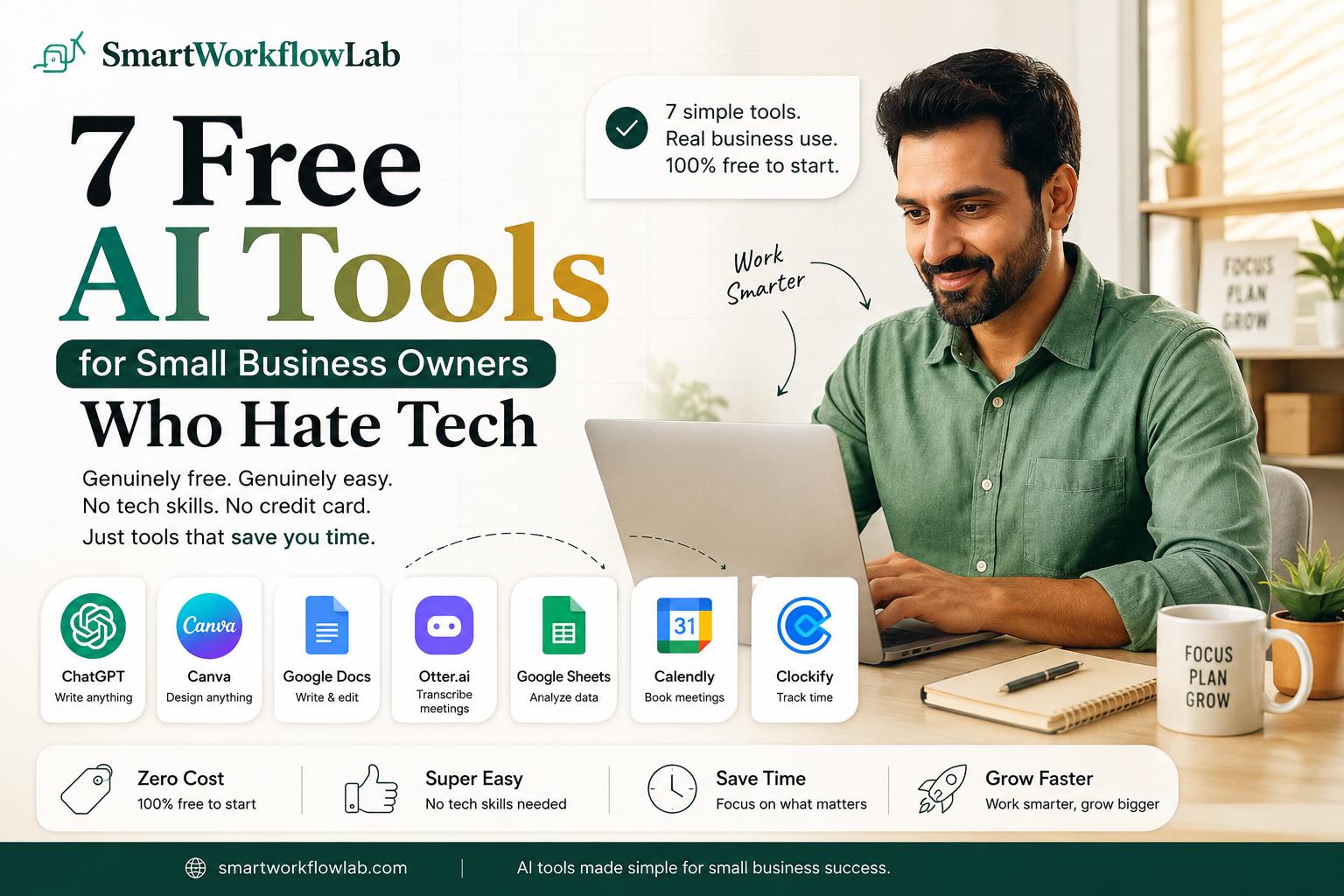
If the phrase “AI tools” makes you want to close the tab, this list is for you. You do not need to understand how any of it works, you do not need to be good with computers, and you do not need to spend a rupee. You just need a task you are tired of doing by hand.
Most articles about AI tools are written for people who already love this stuff. They throw around jargon, list fifty options, and quietly assume you will figure out the setup. That is exactly the wrong approach for a busy owner who just wants the flyer made, the email written, or the meeting booked without a headache.
So this is the plain-English version. Seven free tools, each one genuinely easy, each solving a real small-business problem — with an honest note on where the free plan stops. No setup marathons, no credit card, no tech degree required.
What “Free” Actually Means With AI Tools
Before the list, one honest thing worth understanding, because it saves you frustration later.
“Free” with AI tools usually means a free plan, not a free-forever unlimited buffet. You get a generous amount of use each day or month at no cost, and if you hit the ceiling — sending hundreds of messages a day, or generating dozens of images — the tool asks you to upgrade. For the vast majority of small businesses, the free limits are plenty. Many owners never pay a cent.
A few things to know going in: most of these need nothing more than an email to sign up, none of the ones below require a credit card for the free plan, and the limits change fairly often, so treat any specific number you read anywhere as “check the current version.” What each tool is for rarely changes, even when the fine print does.
Now, the tools.
1. ChatGPT — Your All-Purpose Writing Assistant
Best for: writing emails, replies, social posts, and anything with words.
This is the one to start with. You go to the website, type what you need in normal language — “write a friendly email to a customer whose order is delayed” — and it writes it. No menus to learn, no setup. It is the closest thing to having an assistant you can just talk to.
Why tech-haters like it: you type like you are texting a person. That is the entire skill.
The catch: the free plan limits how many messages you can send in a short window. For everyday writing, you will rarely notice. (If you deal with longer documents — contracts, proposals, multi-page stuff — Claude is a close cousin with a free plan that handles long text especially well, and it is worth a look for that.)
2. Canva — Design Without Being a Designer
Best for: social media graphics, flyers, menus, and anything that needs to look good.
Canva is where you make professional-looking visuals by dragging things around, not by learning design software. It has thousands of ready-made templates — you pick one, swap in your text and photos, done. Its built-in AI can write captions, remove backgrounds from photos, and even generate images from a description.
Why tech-haters like it: it feels like arranging things on a page, not “designing.” If you can move a photo with your finger, you can use it.
The catch: the free plan is famously generous, but a slice of the fanciest templates, images, and AI features are reserved for the paid version. You can do a lot before you ever bump into that.
3. Grammarly — Fixes Your Writing While You Type
Best for: making emails, proposals, and messages clear and error-free.
Grammarly quietly checks your spelling, grammar, and tone as you write — in your email, your browser, wherever you type. You do not open it and “use” it so much as install it once and let it underline the things worth fixing. For anyone who worries their writing looks unprofessional, it is a confidence booster that runs in the background.
Why tech-haters like it: you set it up once and then basically forget it exists. It just makes you look sharper.
The catch: the free version handles the essentials — spelling, grammar, basic clarity. The deeper rewriting and tone suggestions sit behind the paid plan, but the free layer catches the mistakes that matter most.
4. Calendly — End the “What Time Works?” Email Chain
Best for: letting people book time with you without the back-and-forth.
You know the ping-pong of “how about Tuesday?” / “no, Wednesday?” / “actually…” Calendly kills it. You set your available hours once, share a link, and people pick a slot that drops straight into your calendar. It handles time zones automatically, so you never do the mental math again.
Why tech-haters like it: you set it up one time, then just send a link. That is the whole workflow.
The catch: the free plan connects one calendar and covers unlimited basic bookings, which is all most solo owners need. Multiple meeting types and fancier customization are paid.
5. Otter.ai — Automatic Notes From Every Meeting and Call
Best for: capturing what was said so you can focus on the conversation.
Instead of scribbling notes while trying to listen, Otter records and writes out the whole meeting for you, then gives you a short summary of the key points. Whether it is a client call or a quick team huddle, you walk away with a written record without lifting a pen.
Why tech-haters like it: it just listens and types. You do nothing except let it run.
The catch: the free plan gives you a set number of transcription minutes each month — fine for a handful of meetings. Heavy back-to-back call days may push you toward the paid tier.
6. NotebookLM — Ask Your Own Documents Questions
Best for: getting answers out of your own files without reading all of them.
This one is underrated and perfect for owners drowning in paperwork. You upload your documents — a supplier contract, a policy PDF, a stack of notes — and then just ask questions about them in plain English. “What is the cancellation window in this contract?” It answers using only what you uploaded, so it will not make things up from the internet.
Why tech-haters like it: upload a file, ask a question, get an answer. No feature to master.
The catch: there are daily limits on how much you can ask and how many documents you can load, but they are roomy for normal business use.
7. Google Gemini — AI Inside the Gmail and Docs You Already Use
Best for: getting AI help without learning a new app, if you already live in Google tools.
If your business already runs on Gmail, Google Docs, and Google Sheets, Gemini is the AI that lives right there inside them. It can draft an email in your inbox, summarize a long document, or help you start a spreadsheet — in the tools you already know, so there is nothing new to open or learn.
Why tech-haters like it: it shows up where you already work. No new website, no new login.
The catch: the most advanced features and higher usage come with a paid Google plan, but the everyday help built into the free tools covers most needs.
The 7 Tools at a Glance
| Tool | Use it for | Why it is easy |
|---|---|---|
| ChatGPT | Writing anything with words | Type like you are texting a person |
| Canva | Graphics, flyers, social posts | Drag and drop, no design skills |
| Grammarly | Clean, error-free writing | Set once, runs in the background |
| Calendly | Booking meetings | Set hours once, share a link |
| Otter.ai | Meeting and call notes | It just listens and types |
| NotebookLM | Answers from your own files | Upload, ask, get an answer |
| Google Gemini | AI in Gmail and Docs | Lives where you already work |
If You Only Try One, Start Here
Do not try to adopt all seven this week — that is a recipe for giving up. Pick the one task that annoys you most and match it to a tool.
Hate writing emails? Start with ChatGPT. Drowning in scheduling messages? Calendly. Never have time to make your business look polished online? Canva. Buried in documents? NotebookLM.
Use that one tool for two weeks until it feels normal. Then, and only then, add a second. One small win at a time is how non-techy people actually build an AI habit that sticks.
How to Start Without Getting Overwhelmed
A few things that make the difference between “this is great” and “this is too much”:
- Sign up with email, skip the extras. You do not need to connect anything or fill in your whole business profile to start. Sign in and try one small task.
- Use it for something tiny first. Ask ChatGPT to reword one email. Make one Canva graphic. Small, low-stakes tasks build comfort faster than trying to automate your whole business on day one.
- Always read what it makes before you send it. AI is a fast first-drafter, not a final authority. A ten-second review keeps you looking professional and catches the odd mistake.
- Keep sensitive information out. Do not paste customer financial details, passwords, or anything private into a free AI tool. General writing and design tasks are fine.
Mistakes to Avoid
Trying every tool at once. Seven new apps in one week guarantees overwhelm. One at a time, always.
Paying before you need to. The free plans genuinely cover a lot. Do not upgrade until you have actually hit a limit that is slowing your business down.
Trusting the output blindly. AI states wrong things with total confidence. Treat it as a helpful assistant whose work you always glance over, not an expert who is always right.
Chasing the newest shiny tool. New AI tools launch every week. The seven here are boring on purpose — they are proven, stable, and easy. Master a few before you go hunting for more.
How SmartWorkflowLab Helps
We test AI tools in real workflows before recommending them, which means we filter out the hype and the overcomplicated stuff so you do not have to. For owners who would rather run their business than research software, that is the whole point — a shortlist of tools that are genuinely easy and genuinely useful, with honest notes on where each one stops being free.
If you want help figuring out which tools fit your specific business, or how to connect a few of them into a simple routine, that is exactly the kind of practical, no-jargon guidance we focus on.
Frequently Asked Questions
1. What is the best free AI tool for a small business owner who is not techy?
For most people, ChatGPT is the easiest place to start. You open a website, type what you want in plain English, and it writes it back. There is nothing to install and no setup, which makes it the gentlest entry point before you try anything else.
2. Are these AI tools really free, or is there a catch?
They are genuinely free to use, but each free plan has limits — a cap on how much you can use per day or month, or advanced features locked behind a paid plan. For most small businesses those free limits are enough to get real work done without ever paying.
3. Do I need a credit card to use free AI tools?
For most of the tools here, no. You can sign up with just an email and start using them. Be cautious with any tool that demands card details to unlock a free plan, since that is often a trial in disguise rather than a truly free tier.
4. Can I use what these AI tools create in my actual business?
Generally yes — the major tools allow you to use their output commercially, so an email, graphic, or caption you generate can go straight into your business. Always give it a quick human read before it goes out, since AI can get details wrong.
5. How many AI tools should I actually use?
Start with one. Pick the single most annoying task in your week and use one tool to handle it for a couple of weeks. Adding all seven at once is the fastest way to feel overwhelmed and give up. Momentum from one small win makes the next tool easier to adopt.
6. Will AI tools replace my staff or my personal touch?
For a small business, these tools mostly remove busywork — drafting, formatting, scheduling, note-taking — so you spend more time on the customer-facing work that actually needs you. They handle the tedious parts, not the relationships.
7. What if the AI gets something wrong?
It will, sometimes. AI writes confidently even when it is mistaken, so treat its output as a fast first draft, not a final answer. A quick review before you send or publish catches the occasional error and keeps your business looking professional.
8. Do free AI tools keep my business information private?
Treat anything you type into a free AI tool as not fully private, and avoid pasting sensitive customer data, passwords, or financial details. For general writing, design, and scheduling tasks this is rarely an issue, but it is a habit worth keeping.
Final Thoughts
You do not have to love technology to benefit from it. The whole promise of these tools is that they take the tedious, time-eating parts of running a business — the writing, the formatting, the scheduling, the note-taking — and make them faster, so you get back to the work only you can do.
Pick one tool. Solve one annoying task. Give it two weeks. That is the entire plan, and it is enough to see whether AI actually earns a place in your week. Most owners who start this way are surprised how quickly “I hate this tech stuff” turns into “wait, this just saved me an hour.”
Want a shortlist you can trust? SmartWorkflowLab tests AI tools in real workflows and shares honest, jargon-free verdicts — no sponsored picks. Explore our other guides, or get in touch if you want help choosing the right tools for your business.