

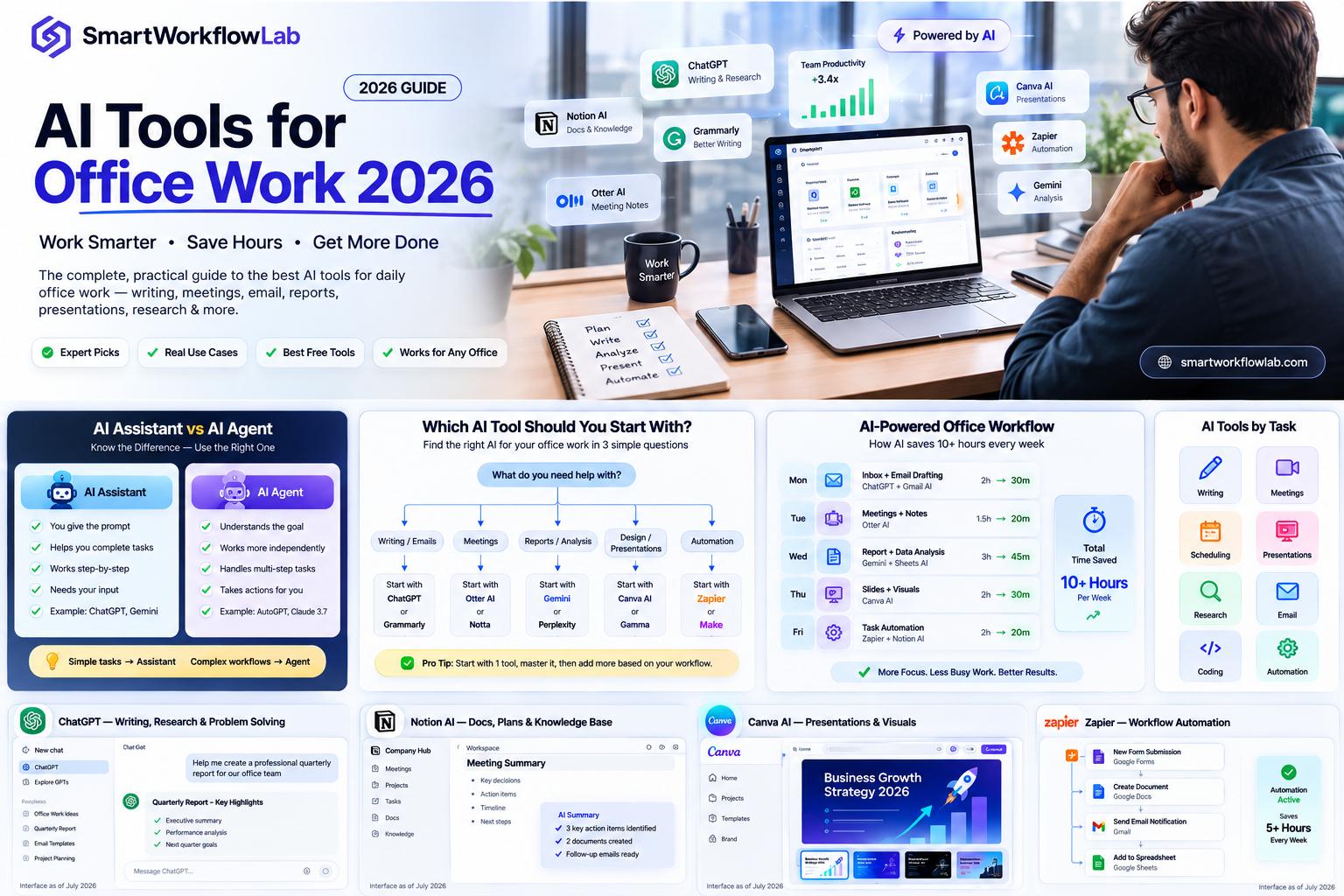
If you’ve spent any part of your week reformatting a slide deck, re-typing notes from a meeting you just sat through, or drafting the same kind of email for the fifth time this month, you already understand the appeal of AI tools for office work. The harder problem isn’t finding an AI tool — there are hundreds of them now. It’s figuring out which ones are actually worth your time, which ones duplicate what you already pay for, and which ones you should think twice about before feeding them company data.
This guide is built differently from most “best AI tools” lists. Instead of ranking one vendor’s own product at the top of the pile, we’ve organized everything around the actual jobs office workers do every day — writing, meetings, scheduling, presentations, research, email, and light technical work — and we’ve added the sections most guides skip entirely: what to check before you introduce a tool to your company, what these tools really cost once you scale past one seat, and where AI still needs a human checking its work.
Last verified: July 2026. AI pricing and features change often, so we’ve noted approximate figures where they apply and recommend confirming current pricing directly with each vendor before you buy.
What is an AI Tool for Office Work?
An AI tool for office work is any software that uses artificial intelligence to help you complete a task you’d otherwise do manually — drafting a document, transcribing a meeting, organizing a project, or building a presentation. That’s a broad definition on purpose, because the category itself has broadened. In 2025, most “AI tools” were really just chatbots with a form wrapped around them. In 2026, a growing share of them are agents that can carry out multi-step work with much less hand-holding.
A short example: when a meeting ends, an AI meeting tool can automatically transcribe the discussion, summarize the key decisions, and push action items into your task manager — all without anyone manually typing notes or forwarding a recap email.
Assistant vs. Agent — Why the Distinction Matters Now
This distinction is worth understanding before you read another word of this guide, because it changes how much trust and oversight a tool deserves.
- An AI assistant answers when you ask. You give it a prompt — “summarize this document,” “draft this email” — and it responds. You’re driving every step.
- An AI agent can plan and execute several steps toward a goal with less supervision. It might read your inbox, decide which emails need action, draft replies, and flag the ones that need your judgment — without you prompting it at every stage.
Most of the tools in this guide are still assistants. But agentic capability is spreading fast across major platforms (Microsoft, Google, Anthropic, OpenAI), and it’s the single biggest shift in this category since generative AI tools went mainstream. We’ve dedicated a full section to it below.
Why Office Workers Need AI Tools Now
Most professionals don’t set out to drown in repetitive admin work. It just accumulates over time — a status update here, a reformatted slide there, a manually transcribed meeting note somewhere else — until a task that should take minutes eats up half a day.
A few signs your workload has outgrown manual methods:
- You regularly re-type the same information across two or three different tools
- Meeting notes exist only in someone’s memory or a scattered set of personal notes
- Reformatting a document or deck takes longer than actually writing the content
- New hires take weeks to learn “which tool does what” because nothing is standardized
- Mistakes happen not from carelessness, but because a manual handoff was missed
None of this means you or your team are doing a bad job. It usually just means your workflow was built for a lighter workload than the one you’re carrying now.
Start Here — Audit What You Already Have Before Buying Anything
This is the step almost every “best AI tools” article skips, and it’s the one that will save you the most money and the most awkward “why do we have three tools that do the same thing” conversations.
Expert tip: Before recommending or purchasing any new AI tool, check what’s already bundled into the software your organization pays for. A surprising number of AI tool requests turn out to be features that already exist one menu deep.
What Microsoft 365 Copilot Already Does
If your organization runs on Microsoft 365, Copilot is likely already available or close to it. It works inside Word, Excel, PowerPoint, Outlook, and Teams — drafting documents, building slides from a prompt or existing file, summarizing long email threads, and pulling meeting recaps and action items out of Teams calls. Its biggest advantage is that it’s grounded in your own organization’s data through Microsoft Graph, so its answers are about your actual work rather than the open internet.
As of mid-2026, Microsoft 365 Copilot is typically priced as an add-on around $30 per user per month on an annual commitment for enterprise customers (with a lower promotional rate for organizations under 300 seats), and it requires a qualifying Microsoft 365 base license on top of that — so the real all-in cost per seat is often noticeably higher than the headline add-on price. If you’re budgeting for a team rollout, get the true combined cost (base license + Copilot add-on) from Microsoft directly rather than relying on the add-on price alone.
What Google Workspace’s Gemini Already Does
If you’re in Google Workspace instead, Gemini is integrated across Gmail, Docs, Sheets, Slides, and Meet — drafting and rewriting text in Docs, building first-pass slide decks in Slides, summarizing long email threads in Gmail, and joining Meet calls to generate notes. Google’s consumer-facing AI plan (marketed as Google AI Pro) runs around $19.99 per month, and Workspace customers can typically add Gemini capability to an existing Workspace subscription through a tiered add-on, separate from the individual consumer plan.
When It’s Worth Adding a Dedicated Tool
Built-in AI is genuinely good at general drafting and summarizing inside its own ecosystem, but it has real limits: it usually can’t see data outside its own platform (a Microsoft-first Copilot deployment typically can’t reach Slack or Notion, for example), and it’s rarely the strongest option for a narrow, high-stakes task like meeting-specific transcription accuracy, a polished external presentation, or heavy inbox triage. The honest rule of thumb: start with what you already have, and add a dedicated tool only for the one or two tasks where the built-in option clearly falls short.
How We Evaluated These Tools
Every tool below was assessed against the same five criteria:
- Actual task fit — does it meaningfully automate or improve a specific piece of office work, rather than just wrapping a chatbot in a new interface?
- Ease of adoption — can a non-technical office worker get real value within the first session?
- Integration — does it connect to the tools your team already uses (Outlook, Slack, Google Workspace, CRM systems)?
- Pricing transparency — is there a genuine free tier or trial, and is the paid pricing clearly published?
- Data handling — does the vendor publish clear information about how your data is used and stored?
None of the tools mentioned here paid for placement or ranking position. Where we mention a specific price, feature, or integration, it reflects publicly available information at the time of writing — always confirm current details on the vendor’s own site before purchasing, since AI pricing changes frequently.
Best AI Tools for Office Work at a Glance
| Tool | Best For | Starting Price (as of mid-2026) | Free Option | Works Well With |
|---|---|---|---|---|
| ChatGPT (OpenAI) | General-purpose writing, research, brainstorming | Plus: $20/month | Yes, limited free tier | Browser extensions, custom GPTs, API |
| Claude (Anthropic) | Long-document analysis, careful writing, coding | Pro: $20/month | Yes, limited free tier | Google Workspace, Slack, API |
| Gemini / Google AI Pro | Google Workspace-native drafting and research | ~$19.99/month | Yes, limited free tier | Gmail, Docs, Sheets, Slides, Meet |
| Microsoft 365 Copilot | Microsoft 365-native drafting and meeting recaps | ~$30/user/month add-on (base license required) | Free Copilot Chat tier for basic use | Word, Excel, PowerPoint, Outlook, Teams |
| Notion AI | Flexible workspace notes, docs, and knowledge base | Notion plans from ~$10/seat/month | Yes, freemium | Slack, Google Drive, GitHub |
| Grammarly | Grammar, tone, and clarity checking | Free tier available; paid tiers vary | Yes | Google Docs, email, Slack, browser-wide |
| Fathom | Free meeting transcription and summaries | Free forever (capped premium features) | Yes, generous free tier | Zoom, Google Meet, Microsoft Teams |
| Otter.ai | Searchable meeting transcripts | Free tier available | Yes | Zoom, Google Meet, Microsoft Teams |
| Motion | Automated calendar scheduling | ~$34/month | No free plan | Google Calendar, Slack |
| Zapier | No-code workflow automation | Free (limited); paid from ~$29.99/month | Yes | Thousands of app integrations |
| NotebookLM (Google) | Summarizing and querying your own documents | Free | Yes, no paid tier as of writing | Google Drive documents |
Best AI Tools by Task
Rather than one long undifferentiated list, here’s what to reach for depending on the actual job in front of you.
Writing & Editing
For everyday writing — emails, reports, first drafts — ChatGPT, Claude, and Gemini all handle general drafting well, and which one suits you best usually comes down to which ecosystem you’re already in and how much you value long-document handling (Claude) versus broad general-purpose flexibility (ChatGPT) versus native Google integration (Gemini). For polishing what you’ve already written, Grammarly remains a strong, low-friction layer that works across Google Docs, email, and most places you type, catching grammar and tone issues without you needing to draft a prompt at all.
Pros: Fast first drafts, tone adjustment, grammar catching, works across most writing surfaces. Cons: General chatbots can produce confident-sounding but inaccurate content if you’re asking about niche or internal-only information; always fact-check anything used externally.
Meetings & Transcription
Fathom stands out here because of its unusually generous free tier — unlimited recordings, transcripts, and basic summaries at no cost, with premium AI summaries capped at a small number of calls per month before you need to upgrade. Otter.ai is a longer-established alternative with real-time transcription, speaker identification, and a searchable meeting archive, which some teams prefer for its maturity and broader plan structure. read.ai adds a layer most competitors don’t — sentiment tracking and speaker-pace coaching across your meetings — on top of standard transcription and summaries.
Common mistake: Teams often adopt a meeting bot without checking whether it’s allowed to join calls with external clients or partners. Some organizations and clients have explicit policies against recording bots joining sensitive calls — check before your AI notetaker shows up uninvited.
Scheduling & Task Management
Motion takes calendar-blocking off your plate by automatically scheduling tasks and meetings into open slots and rearranging your day as priorities shift — useful if you’re juggling several projects and tend to lose track of when things are actually supposed to happen. Sunsama takes a gentler approach, pulling tasks from tools like Asana, Trello, and Gmail into a daily planning ritual with an end-of-day review, which suits people who want more manual control than Motion’s fully automated scheduling. For team-wide project tracking rather than personal scheduling, Asana (with Asana Intelligence) and ClickUp (with its built-in AI) both layer AI summaries, risk-flagging, and automation on top of established project management workflows.
Presentations & Visual Content
If you live in PowerPoint or Google Slides day-to-day, Plus AI works as an add-on inside those tools rather than asking you to learn a new platform, with natural-language slide editing and template support. For teams that need brand-consistent, enterprise-grade decks generated from documents and data with governance controls, dedicated presentation platforms built around contextual AI agents (such as Prezent’s Astrid) are built specifically for that higher-stakes use case. For data visualization inside a deck or report, Julius AI turns plain-language prompts (“show me a bar chart of revenue by region”) into clean charts without you touching a spreadsheet formula.
Research & Document Summarization
NotebookLM from Google is worth calling out specifically because it’s free with no paid tier as of this writing, and it’s built around a genuinely useful constraint: it only draws from the documents you upload, rather than blending in outside information the way a general chatbot might. That makes it well suited to summarizing and querying your own reports, meeting notes, or research files without worrying about the AI mixing in unrelated or unverified outside content. Coral AI offers a similar “chat with your PDF” approach with a small free tier before moving to a paid plan.
Email & Inbox Management
Superhuman focuses on speed and tone-matching, learning from emails you’ve already sent to help draft replies that sound like you, alongside inbox-splitting and follow-up reminders. MailMaestro offers a comparable AI email-writing layer with adjustable tone and length and a smaller free tier for occasional use. Newer inbox-triage tools built specifically around agentic email handling (drafting and prioritizing replies with less manual prompting) are also gaining adoption quickly — worth testing if your biggest time sink is genuinely your inbox rather than any other single task.
Coding & Technical Tasks for Non-Developers
You don’t need to be a developer to get value here. GitHub Copilot (individual plans starting around $10/month) can help a marketer write a simple automation script or an analyst debug a SQL query, autocompleting code and explaining what an unfamiliar snippet does in plain language. Cursor takes a more AI-native approach, built as a full code editor designed around AI assistance from the ground up, which suits people who want to go a step further than autocomplete — refactoring a file or writing tests with a prompt rather than a plugin.
Best AI Tools by Role
Generic “best of” lists rarely account for how differently these tools get used depending on your actual job. Here’s a starting point by role.
| Role | Recommended Starting Point | Why |
|---|---|---|
| Executive / Administrative Assistant | Fathom or Otter.ai + Motion | Meeting capture and calendar automation solve the two biggest recurring time sinks in this role |
| Manager / Team Lead | Asana Intelligence or ClickUp AI + Fathom | Project visibility and meeting recaps reduce the manual status-tracking burden |
| Analyst / Data-Heavy Role | Claude or ChatGPT + Julius AI | Long-document reasoning plus fast, prompt-driven data visualization |
| Marketing / Communications | Plus AI or a presentation-focused tool + Grammarly | Presentation speed and consistent, on-brand written tone matter most here |
For Executive & Administrative Assistants
The recurring pain points in this role are almost always meetings and scheduling. A free-tier meeting notetaker paired with an automated scheduling tool addresses both without a large budget ask.
For Managers & Team Leads
Visibility across a team’s work — without chasing status updates manually — is the highest-value use case. AI-generated project summaries and risk flags inside your existing project management tool typically deliver more value here than adding an entirely new platform.
For Analysts & Data-Heavy Roles
The priority is a model that can hold a long document or dataset in context without losing track of details, and a tool that turns a plain-language request into a usable chart or table without you touching pivot tables.
For Marketing & Communications Professionals
Speed and brand consistency matter most — a presentation tool that respects your existing brand guidelines, plus a writing-quality layer that keeps external-facing copy error-free.
The Rise of Agentic AI in Office Work
This is the part of the AI tools landscape most 2025-era “best of” guides simply don’t cover, and it’s the part most worth understanding now.
What Makes a Tool “Agentic” vs. Just “AI-Powered”
A tool earns the “agentic” label when it can take a goal, break it into steps, and carry out several of those steps with limited supervision — rather than waiting for you to prompt each individual action. Practically, that might look like an agent that reads a batch of incoming emails, drafts responses to the routine ones, and only surfaces the genuinely ambiguous ones for your review, or one that can navigate a web app on your behalf to complete a multi-step task like filing an expense report.
Tools to Watch: Claude Cowork, Copilot Agents, Gemini Agent Mode, Manus
- Claude Cowork / Claude Computer Use (Anthropic) — designed to manage background, multi-step tasks and, in the Computer Use variant, to operate a computer interface directly rather than only responding in a chat window.
- Microsoft 365 Copilot Agents — extend Copilot beyond drafting-in-place toward agents that can carry out defined workflows across Microsoft 365 apps, aimed at reducing repetitive multi-step admin work.
- Gemini Agent Mode / Project Mariner (Google) — built to handle multi-step tasks and automate browser-based actions on the user’s behalf.
- Manus — positioned toward more autonomous, goal-driven task execution rather than a back-and-forth chat interface.
Warning: Agentic tools are powerful specifically because they act with less human confirmation at each step — which also means a mistake can compound further before you notice it. Start any agentic tool on low-stakes, easily reversible tasks (drafting, not sending; organizing, not deleting) until you’ve built real confidence in its output.
Data Privacy & Security: What to Check Before You Use Any AI Tool at Work
This is arguably the most important section in this guide, and it’s the one competitor articles on this topic tend to skip entirely.
Questions to Ask Before Entering Company Data
- Does the vendor use your inputs to train its general models, and can you opt out?
- Where is your data stored, and for how long is it retained?
- Does the tool have role-based access controls if multiple people on your team will use it?
- Does your company already have an internal AI usage policy — and does this tool comply with it?
Expert tip: Many major AI providers (including OpenAI, Anthropic, and Google) offer business or team tiers with stronger data-handling commitments than their free consumer tiers — if you’re using an AI tool for anything involving client or internal company data, the business tier is very often the more defensible choice, not just the “nicer” one.
What SOC 2, GDPR, and ISO 27001 Actually Mean for You
- SOC 2 is an independent audit report confirming a vendor has controls in place around data security, availability, and confidentiality — worth asking for if your company has any kind of security review process.
- GDPR compliance matters if your organization handles data belonging to individuals in the EU/EEA, regardless of where your company is based — it governs how that personal data can be collected, processed, and stored.
- ISO 27001 is an international standard for information security management systems — a vendor holding this certification has had its security processes independently assessed against a recognized framework.
None of these certifications guarantee a tool is risk-free, but the absence of any of them — or a vendor’s unwillingness to answer basic questions about data handling — is a legitimate reason for caution before rolling a tool out beyond your own personal use.
A Quick Vetting Checklist
| Check | Why It Matters |
|---|---|
| Free trial available before committing | Lets you test real workflows, not just a demo |
| Clear, published data-retention policy | Confirms you know what happens to your inputs |
| Business/team tier with stronger data protections | Appropriate default for anything beyond personal use |
| Integrates with your existing tools | Avoids creating an isolated system nobody actually uses |
| Aligns with your company’s AI usage policy | Avoids introducing a tool your organization hasn’t sanctioned |
What AI Tools Cost at Team Scale
Single-seat pricing is what every “best AI tools” article shows you. It’s rarely what you actually pay once a tool rolls out to a team.
| Tool | Single-Seat Price | What Changes at Team Scale |
|---|---|---|
| Microsoft 365 Copilot | ~$30/user/month add-on | Requires a qualifying Microsoft 365 base license per seat on top — the true combined cost is often meaningfully higher than the add-on price alone |
| ChatGPT / Claude / Gemini | ~$20/month (individual) | Business/team tiers exist with per-seat pricing and stronger data controls — check current vendor pricing rather than assuming the consumer price scales directly |
| Fathom | Free (individual) | Team and Business tiers add SSO, shared search, and CRM sync at a per-seat monthly rate |
| Zapier | Free (limited) / paid from ~$29.99/month | Multi-step workflows and higher usage volumes typically require a higher-tier plan as a team’s automation needs grow |
| Notion AI | Plans from ~$10/seat/month | AI add-on pricing has shifted over time — confirm current bundling directly with Notion before budgeting for a team rollout |
Common mistake: Budgeting for a rollout using only the advertised entry-level or add-on price, without checking whether a base subscription, minimum seat count, or annual commitment is required underneath it. This is especially true for Microsoft 365 Copilot, where the add-on price is only part of the real cost.
A Real Workflow Example: One Office Worker’s Week with AI
Concrete examples are more useful than another abstract feature list, so here’s what a realistic week might look like for someone stacking two or three tools together rather than using one in isolation.
Monday: Inbox Triage and Meeting Prep
Start the day with an AI email tool drafting responses to routine messages, freeing you to focus on the two or three emails that actually need judgment. Before a recurring status meeting, a quick prompt to a general-purpose assistant can turn last week’s notes into a short agenda.
Midweek: Reports, Research, and Presentations
A long report or research document gets uploaded to a document-specific summarization tool rather than a general chatbot, keeping the AI’s answers grounded only in that source material. Key data points get turned into a chart with a plain-language prompt instead of manual spreadsheet work, and the resulting narrative flows into a presentation tool that builds a first-draft deck from that same content — cutting what used to be a multi-hour formatting task down considerably.
Friday: Planning and Review
A meeting notetaker’s weekly summary gets scanned for action items that didn’t make it onto anyone’s task list, and a scheduling tool rebalances next week’s calendar based on what’s still outstanding. A short end-of-week review — what worked, what needs adjusting — keeps the stack from becoming clutter rather than a genuine system.
Mistakes to Avoid
Adopting a tool company-wide before testing it. Rolling out an AI tool to an entire team before trying it on your own real workflow for a week or two almost always surfaces problems a demo never would.
Feeding sensitive data into a free consumer-tier tool. Free tiers are more likely to use your inputs for model training. Anything involving client or confidential company information deserves a business or team tier with clearer data-handling terms.
Assuming fluent output means accurate output. Every large language model can produce confident, well-formatted answers that are simply wrong, especially about niche internal information it was never given access to.
Stacking overlapping tools. Adding a new AI tool for every task, without checking whether an existing one already covers it, creates confusion and subscription clutter rather than efficiency.
Skipping IT approval or your company’s AI policy. Even a tool that seems low-risk should go through whatever review process your organization already has in place.
Risks and Limitations of AI Tools at Work
No responsible guide to this topic should read like unqualified marketing copy. Here’s where these tools genuinely fall short.
Hallucination and Accuracy
Every large language model can produce confident, well-formatted answers that are simply wrong — especially on niche internal information it was never trained on or given access to. Treat AI-generated facts, figures, and quotes in anything client-facing or decision-critical as a first draft requiring verification, not a finished answer.
Over-Reliance and Skill Erosion
Leaning on AI for every first draft, every summary, and every scheduling decision can quietly erode the judgment and institutional knowledge that made you good at your job in the first place. Use these tools to remove genuinely repetitive friction, not to outsource the thinking that’s actually your value-add.
Where a Human Review Step Is Non-Negotiable
Anything involving legal language, financial figures, HR communications, or external client commitments should have a human review step before it goes out the door, regardless of how polished the AI’s draft looks. This isn’t a limitation of any one tool — it’s a sensible constant across all of them.
Best Practices for Adopting AI Tools at Work
A practical approach that tends to work regardless of team size:
- Start with one task that’s a genuine daily time sink, not the flashiest tool on a list.
- Read the vendor’s data policy before your first real use, not after.
- Test on a free tier or trial with real work, not a demo scenario, for at least a week before deciding.
- Keep a human review step for anything external-facing or high-stakes.
- Add one tool at a time. A stack of two or three well-chosen tools you actually use consistently beats a subscription drawer full of tools you tried once.
- Revisit your stack every few months — this category moves quickly, and a tool that was the best option six months ago may not be today.
How to Choose the Right AI Tool for Your Job
If you only take one framework from this guide, use this one:
- Check what’s already built into your existing platform (Microsoft 365 Copilot or Google Workspace Gemini) — can it already solve this?
- Identify the single biggest recurring time sink in your week — meetings, inbox, scheduling, presentations, or research — and start there, rather than trying to overhaul everything at once.
- Confirm the tool’s data-handling policy matches what your task requires — is this for your own drafting, or does it involve client or confidential company information?
- Test on a free tier or trial with real work, not a demo scenario, for at least a week before deciding.
- Add one tool at a time. A stack of two or three well-chosen tools you actually use consistently beats a subscription drawer full of tools you tried once.
Frequently Asked Questions
1. What are AI tools for office work?
AI tools for office work are software applications that use artificial intelligence to help with tasks like writing, meeting transcription, scheduling, presentations, and research — automating repetitive work so you can focus on higher-value tasks.
2. Are AI tools for office work free to use?
Many offer genuinely useful free tiers — NotebookLM is free with no paid tier, Fathom offers unlimited free meeting transcription, and ChatGPT, Claude, and Gemini all have functional free tiers. Paid plans typically unlock higher usage limits, team features, and stronger data protections.
3. Is it safe to use AI tools with confidential company data?
It depends on the tool and the tier. Free consumer tiers are more likely to use your inputs for model training unless you opt out, while business or team tiers from major providers typically offer stronger data-handling commitments. Always check the vendor’s data policy and your company’s own AI usage guidelines before entering sensitive information.
4. What’s the difference between an AI assistant and an AI agent?
An AI assistant responds to a prompt you give it, one step at a time. An AI agent can plan and carry out several steps toward a goal with less ongoing supervision — for example, triaging and drafting replies across a batch of emails rather than one at a time.
5. Which AI tools integrate with Microsoft 365 or Google Workspace?
Microsoft 365 Copilot is built natively into Word, Excel, PowerPoint, Outlook, and Teams. Gemini is built into Gmail, Docs, Sheets, Slides, and Meet. Many third-party tools, including Fathom, Otter.ai, Notion AI, and Zapier, also offer integrations with one or both ecosystems.
6. Do AI tools replace traditional project management software?
Generally not entirely. Most AI features layer on top of existing project management platforms (like Asana Intelligence or ClickUp’s AI features) rather than replacing the underlying system — they add summarization, automation, and insight rather than reinventing task tracking from scratch.
7. How much do AI productivity tools cost for a team?
It varies widely and rarely matches the advertised single-seat price exactly. Microsoft 365 Copilot, for example, requires a separate base license on top of its add-on price, which can push the real per-seat cost noticeably higher. Always request or calculate the true combined cost before budgeting for a team rollout.
8. Can non-technical employees use AI coding tools?
Yes. Tools like GitHub Copilot and Cursor are commonly used by non-developers to write simple automation scripts, Excel macros, or SQL queries — you don’t need a programming background to get real value from them, though a basic understanding of what the code is doing is still worth having before you run it.
Final Thoughts
The most useful AI stack for office work is rarely the biggest one. It’s the smallest set of tools that reliably removes real friction from your week, chosen with a clear-eyed view of what they cost at scale and how they handle your data.
Start with what you already have, add one tool at a time for your single biggest time sink, and keep a human review step wherever the stakes are genuinely high.
Ready to build your AI tool stack the right way? Start with the decision framework above, confirm current pricing directly with each vendor, and revisit your stack every few months — this is one category where “best” genuinely changes fast.